QNAP
We focus a little more on QNAP’s deployment of the Apache server, since this is the context with which I deployed my own website.
Web GUI
QNAP does provide a web administration page, which abstracts away some of the complexity behind Apache configuration. But you’ll need to manually work with the configuration files in order to get customized performance.

For the record, I’m using QNAP TS-431P. Apache is already pre-loaded and can
be easily enabled under the Web Server tab in the Control Panel.
There are several options in the Web GUI, including:
- Enable Web Server (not sure what this triggers)
- Enable secure connection (HTTPS):
apache-ssl.conf - Force secure connection (HTTPS) only:
apache-force-ssl.conf - Enable Virtual Host: Adds
httpd-vhosts-user.confandhttpd-ssl-vhosts-user.confto the global config - Create Virtual Host: Adds entries to each virtual host file (w/o auth)
QNAP cloud link
If the server does not have a public IP address / DNS record, the services on
the QNAP NAS can still be accessed via the QNAP servers using the hostname
USERNAME.myqnapcloud.com instead. Here, my server can be accessed using
the hostname pyuxiang.com which was bought from and managed under GoDaddy.
Software version
The Apache executable is located at /usr/local/apache/bin/apache.
The service should have already started by default. To determine the
version number:
[~] # /usr/local/apache/bin/apache -v
Server version: Apache/2.4.37 (Unix)
Server built:   May 31 2019 04:09:39
Apache2.4 is the latest version of Apache, at the time of writing.
Directories
The actual Apache subdirectories are located in /mnt/ext/opt/apache
which contains the Apache binaries and
modules, as well as /mnt/HDA_ROOT/.config/apache containing
the configuration files.
Symbolic links are commonly used to reference these two subdirectories, i.e.
/usr/local/apache and /etc/config/apache respectively.
[~] # ls /mnt/ext/opt/apache
bin/     cgi-bin/ conf@    lib/     links/   logs/    modules/ share/

[~] # ls /mnt/HDA_ROOT/.config/apache
apache.conf      extra/           mime.types       php-fpm.conf
apache.conf.bak  magic            original/
The apache.conf is the global Apache configuration file. This file is named
differently in other distributions, including httpd.conf and
apache2.conf. This file is responsible for admin-level settings for the
HTTP server. This article
explains some global configurations in the apache.conf file.
The .config/apache/extra/ directory contains the rest of the settings,
including the two important files required for the virtual host:
httpd-vhosts-user.confgoverns the access controls via HTTPhttpd-ssl-vhosts-user.confgoverns the access controls via HTTPS
Restarting Apache webserver
After every modification to the Apache configuration files (with the
exception of the runtime .htaccess files), the Qthttpd service needs to be
restarted, which can be done using the command
/etc/init.d/Qthttpd.sh restart.
The syntax for the configuration files can be checked using
/usr/local/apache/bin/apachectl -t.
This is VERY important! QNAP will reboot to a backup copy of the configuration
(which is very likely not your configuration) when a syntax error is encountered
which wastes many more manhours saved by a single check.
Root directory
According to this forum post, the root directory should be kept at
/share/Web due to dependencies in other Apache configuration files
(although I’m not too sure which one). Since the path itself is a symlink,
it’s trivial to change the symlink to point to the specific subdirectory that
you want.
Note that this is relevant only if virtual hosts are not used.
Authentication
The htpasswd utility is found in /usr/local/apache/bin/htpasswd.
SSL certificate
The private key and certificate signing request (public key) is a key-pair that can be generated using OpenSSL. This CSR is then used to request for a certificate from the CA provider, which is then added to the server.
For QNAP, the certificate uploading can be performed using the Web GUI, but the files can also be manually referenced from within the directory tags.
<VirtualHost *:443>
    ServerName pyuxiang.com
    DocumentRoot "/share/Web"
    <Directory "/share/Web">
        Options FollowSymLinks MultiViews
        AllowOverride All
        Require all granted
    </Directory>
    SSLEngine on
    SSLCipherSuite EECDH+CHACHA20:EECDH+AES128:RSA+AES128:EECDH+AES256:RSA+AES256:!MD5
    SSLProtocol All -SSLv2 -SSLv3
    SSLCertificateChainFile "/etc/stunnel/uca.pem"
    SSLCertificateFile "/etc/stunnel/stunnel.pem"
</VirtualHost>
Virtual Hosts
Multiple host names can be redirected to webpages located in different directories using virtual hosts. The DNS must first contain the appropriate CNAME records to point each subdomain prefix to the IP address from which the server can be accessed, before the server can begin to resolve the hostnames.
# DNS Records (for the domain 'pyuxiang.com')

+-------+-------+---------------+
| Type  | Name  | Value         |
+-------+-------+---------------+
| A     | @     | 223.25.79.103 |
| CNAME | www   | @             |
| CNAME | notes | @             |
+-------+-------+---------------+
A quick check to make sure the subdomain can be resolved:
PS C:\> nslookup notes.pyuxiang.com
Server:  router.asus.com
Address:  192.168.1.1

Non-authoritative answer:
Name:    pyuxiang.com
Address:  223.25.79.103
Aliases:  notes.pyuxiang.com
Virtual hosts enable multiple hostnames to be served different webpages
using the same Apache server, distinguished by the hostname. This is enabled
using Enable Virtual Host flag from within the QNAP Web GUI.
Note that this method does not automatically configure authentication services,
so we dive into the configuration files instead.
In QNAP, the virtual hosts via HTTPS is found in
/etc/config/apache/extra/httpd-ssl-vhosts-user.conf, while those via HTTP
found in /etc/config/apache/extra/httpd-vhosts-user.conf.
Note that in this example, I used ports 80 and 443 for HTTP and HTTPS
respectively:
NameVirtualHost *:80

<VirtualHost _default_:80>
    DocumentRoot "/share/Web"
</VirtualHost>
<VirtualHost *:80>
    ServerName notes.pyuxiang.com
    DocumentRoot "/share/Web/notes/build"
    <Directory "/share/Web/notes/build">
        Options FollowSymLinks MultiViews
        AllowOverride All
        Require all granted
    </Directory>
</VirtualHost>
Small reminder that Listen 80 and Listen 443 need to be in the
configuration file as well, for the Apache server to listen to those ports.
Only a single listen command is allowed though, and they might already exist
in these locations:
Listen 80at around line 17 inapache.confListen 443at around line 3 inapache-ssl.conf
HTTPS forcing
The Apache server uses pattern matching to redirect HTTP requests to HTTPS
instead, using mod_rewrite. This is automatically enabled when the
“Force secure connection (HTTPS) only” flag is set in the QNAP Web GUI.
Define _qweb_port 80
Define _qweb_ssl_port 443
Define _myqnapcloud_hostname pyuxiang.myqnapcloud.com
Define _qweb_ext_port 8112
<VirtualHost _default_:${_qweb_port}>
    RewriteEngine On
    RewriteCond %{HTTP_HOST} ^([^:]+)(:[0-9]+)?$
    RewriteRule ^ https://%1:${_qweb_ssl_port}%{REQUEST_URI} [R,L,NE]
    <IfDefine _myqnapcloud_hostname>
        RewriteCond %{HTTP_HOST} ${_myqnapcloud_hostname} [NC]
        RewriteRule ^ https://${_myqnapcloud_hostname}:${_qweb_ext_port}%{REQUEST_URI} [R,L,NE]
    </IfDefine>
</VirtualHost>
Enabling Apache modules
The QNAP Apache server comes preloaded with some common Apache modules found
in /usr/local/apache/modules.
To figure out how to enable MOD_WSGI now…
Setting up Git server
So turns out git is already available as a binary in QPython3
distribution. Saves me a lot of work!
Using SSH keys for authentication
Problem being, QNAP absolutely nukes the /root/.ssh folder after each
SSH daemon reboot. Do this once and hope you never need to restart the server.
For installing OpenSSH, consider this
OpenSSH implementation link.
To manually add users to the list of admin with access permission, use the Web GUI, under Control Panel > Telnet/SSH > Edit Access Permission.
Note that you need to be logged into the respective account to create the
SSH key using ssh-keygen. There’s probably a workaround that I don’t know.
Can also explore using this Docker container: qnap-git-server.
Using IP whitelisting
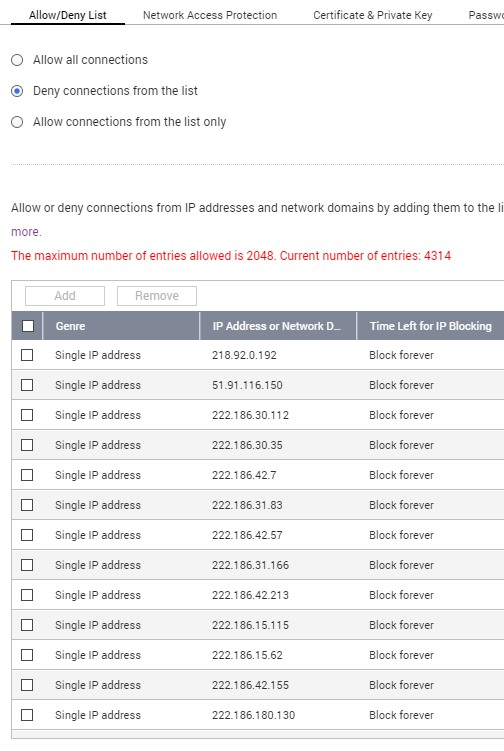
Using Network Access Protection with the GUI is possible, to add access deny rules dynamically upon repeated access failures. Problem with this indiscriminate addition to denylist floods the list.
Better to use a whitelist instead. Suggested key IP subnets:
- Server host IP address
- OpenVPN assigned IP address range:
10.8.0.0/24 - Private address spaces:
192.168.0.0/16(internal network),10.0.3.0/24(OpenVPN client?),10.0.5.0/24(OpenVPN client?) - NUSNET IP address range:
137.132.0.0/16
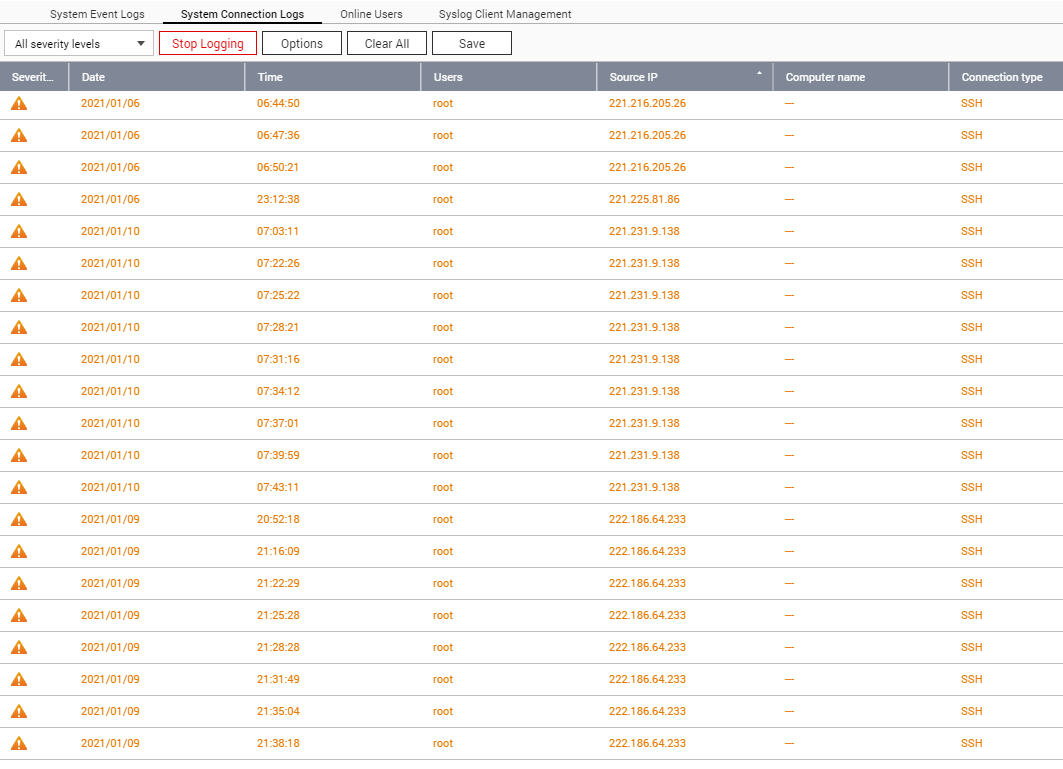
Reminder again to not anyhow expose SSH ports to the wild:

Using WebDAV
Short introduction: WebDAV uses HTTP/S protocol to enable file editing.
Enable WebDAV functionality + set the desired permissions (under account management settings). The port itself can tap on the same HTTPS port 443. For better security, create a dedicated WebDAV access account, and use it exclusively for WebDAV. This mitigates some security issues, e.g. account credentials cannot be deleted from OpenSUSE’s KDE Dolphin, not sure where the credential manager is (hint: it’s not KWallet nor “Password and Keys”).
Note that regular browsers do not support WebDAV functionality, so clients need to be used. For Windows, can rely on WinSCP (select WebDAV as the protocol) as well. Note that read-only access can be enabled, but not recommended since it bypasses any authorization requirement for subdirectories.
If you face issues with reconnecting network drives, because Windows prompts that “network drive is connected with different account credentials”, and mapped drive is already deleted, use the “net” tool. This is the same fix as when SSHFS or just general drive misconfiguration.
$ net use

Status       Local     Remote                    Network
--------------------------------------------------------------------------
OK           Z:        \\10.9.1.13\Web           Microsoft Windows Network
                       \\pyuxiang.com@SSL\Web    Web Client Network

$ net use \\pyuxiang.com@SSL\Web /delete
\\pyuxiang.com@SSL\Web was deleted successfully.
Note that there is a filesize limit on Windows for downloads via WebDAV, to avoid DOS attacks. See this article to increase the limit in the registry.
Adding error document pages
The only reference you’ll ever need is the Apache documentation on Error Responses.
Very straightforwardly, with the relative path depending on whether the
ErrorDocument directive is specified in the global or directory context:
# Error pages
ErrorDocument 500 http://error.example.com/server_error.html
ErrorDocument 404 /error_pages/not_found.php
ErrorDocument 401 "You're not an authorized user, sorry."
The three variables you’ll probably only need for error customization are, in the context of PHP server environment variables:
REQUEST_URI, e.g./not/a/page.htmlREDIRECT_URL, e.g./error_pages/not_found.htmlQUERY_STRING, e.g.test=42
Update: Consider using ${ENV:REDIRECT_STATUS} to signal whether
error pages are directly reached - and if so, yield a 404. This
article
gives a relatively good primer.
Soft error correction
Suppose one day you decide to change all index.html to index.php.
Users using the index.html links can be quietly redirected to the
index.php sites using mod_rewrite.
The main bible comes from the Apache documentation
and the details of the flags are found in this page.
The article on when not to use mod_rewrite
is also a good supplement.
For a softer introduction, see this CSS Tricks
article, as well as the official Apache mod_rewrite intro.
A good tooltip to consider, is using a handler to explicitly handle certain
files, e.g. RewriteRule "!\." "-" [H=application/x-httpd-php] forces
all files without extension to be parsed by the php handler.
Have been unable to apply any rules in the main server configuration,
until I tried this:
RewriteRule ^test.html$ https://www.google.com/ [R,L]
and the 404 page still came up. This means mod_rewrite is probably not
available outside of directory / .htaccess files.
It’s available in the apache-default-modules.conf though.
Weird.
A small but very important caveat, DO NOT use permanent redirect (301) until
everything is confirmed working.
Browsers and search engines aggressively cache these.
Best is if you temporarily enable .htaccess and experiment with rewriting
rules until correct functionality achieved, then change 302 temporary redirects
to 301 permanent redirects.
In any case, nothing a quick RedirectMatch in the server configuration file
won’t fix a missing mod_rewrite, although this will not address
URL rewriting:
RedirectMatch 301 ^/(.+)\.html$ https://pyuxiang.com/$1.php
Directory-level URL rewrites
Managed to use mod_rewrite by enabling .htaccess use, i.e.
AllowOverride All in the server configuration. If there are performance
penalties, we’ll have to see as time goes by.
The .htaccess definition for this website is as follows:
RewriteEngine On
RewriteBase /

# HTTP -> HTTPS already handled by QNAP, so not specified here.
# QNAP also handles automatic "index.php" redirecting in the main config.

# Remove 'www' subdomain reference, note: permanent redirect
RewriteCond %{HTTP_HOST} ^www\.pyuxiang\.com$
RewriteRule (.*)$ https://pyuxiang.com/$1 [R=301,L]

# Remove every other subdomain reference (from DNS), deprecated subdomains
# Redirect to root homepage, since path links likely broken
RewriteCond %{HTTP_HOST} ^.*\.pyuxiang\.com$
RewriteRule (.*)$ https://pyuxiang.com [R,L]

# Redirect '/index(.*)' on homepage immediately
# For some reason, this parses '/index' as well...
RewriteRule ^index.html$ $1 [R=301,L]
RewriteRule ^index.php$ $1 [R=301,L]

# Redirect every '/index(.*)', removes filename reference
# Needed because homepage does not contain '/' path, but needed here
# to denote filename. For some reason, this parses '/index' as well...
# Side-effect: '/index(.*)' files should not be served as standalone resource
RewriteRule (.*)/index.html$ $1/ [R=301,L]
RewriteRule (.*)/index.php$ $1/ [R=301,L]

# Redirect deprecated '.html' links, removes extension -> serve as '.php'
# This is only if '.html' is not a valid resource
RewriteCond %{REQUEST_FILENAME} !-f
RewriteRule (.*)\.html$ $1 [R,L]

# Redirect '.php' links, removes extension -> serve as '.php'
# Using HTTP request condition to avoid infinite loop when serving '.php'
RewriteCond %{THE_REQUEST} ^[A-Z]*\ (.*)\.php\ HTTP
RewriteRule (.*)\.php$ $1 [R,L]

# Redirect accidental directory specification, to avoid 500 server error
# e.g. if '/apache/(index.php)' is invalid, try '/apache(.php)'
RewriteCond %{REQUEST_FILENAME} !-d
RewriteRule (.*)/$ $1 [R,L]

# Finally, serve non-'/index' requests as '.php' if exists
# This is only if the file is not a valid resource
RewriteCond %{REQUEST_FILENAME} !-f
RewriteCond %{REQUEST_FILENAME}\.php -f
RewriteRule (.*)$ $1.php
Some notes, need to decide which format is desirable:
https://pyuxiang.com/path/to/resource/index.htmlhttps://pyuxiang.com/path/to/resource/indexhttps://pyuxiang.com/path/to/resource/https://pyuxiang.com/path/to/resource
This is where MultiViews might be important(?), because it helps redirect
https://pyuxiang.com/path/to/resource to resource.php if it
exists, otherwise resource/index.php. At least that’s my conjecture at
the moment. My gut feel is to ignore index.php since you rarely see it in
the wild for polished websites.
Also, unless you’re dealing with 8.3 naming systems such as in
microcontrollers, you’re better off doing away
with .html / .php filename extensions entirely.
Issues
2020-12-21
Have been trying to figure out how to deal with webpages being cached by the browser, causing my webpages to not be updated at all.
Fiddling with mod_expires by adding the line
ExpiresDefault "access plus 2 minutes" into the Apache configuration file
caused the whole QNAP to bug out. And I didn’t save any backups…
Spent the next two hours trying to get the settings back.